Camera setup
NVR Camera Compatibility Checklist: Test Before You Deploy
Use a repeatable NVR camera compatibility test for RTSP, ONVIF, codec, streams, audio, PTZ, recording, reconnect, and firmware-specific behavior.
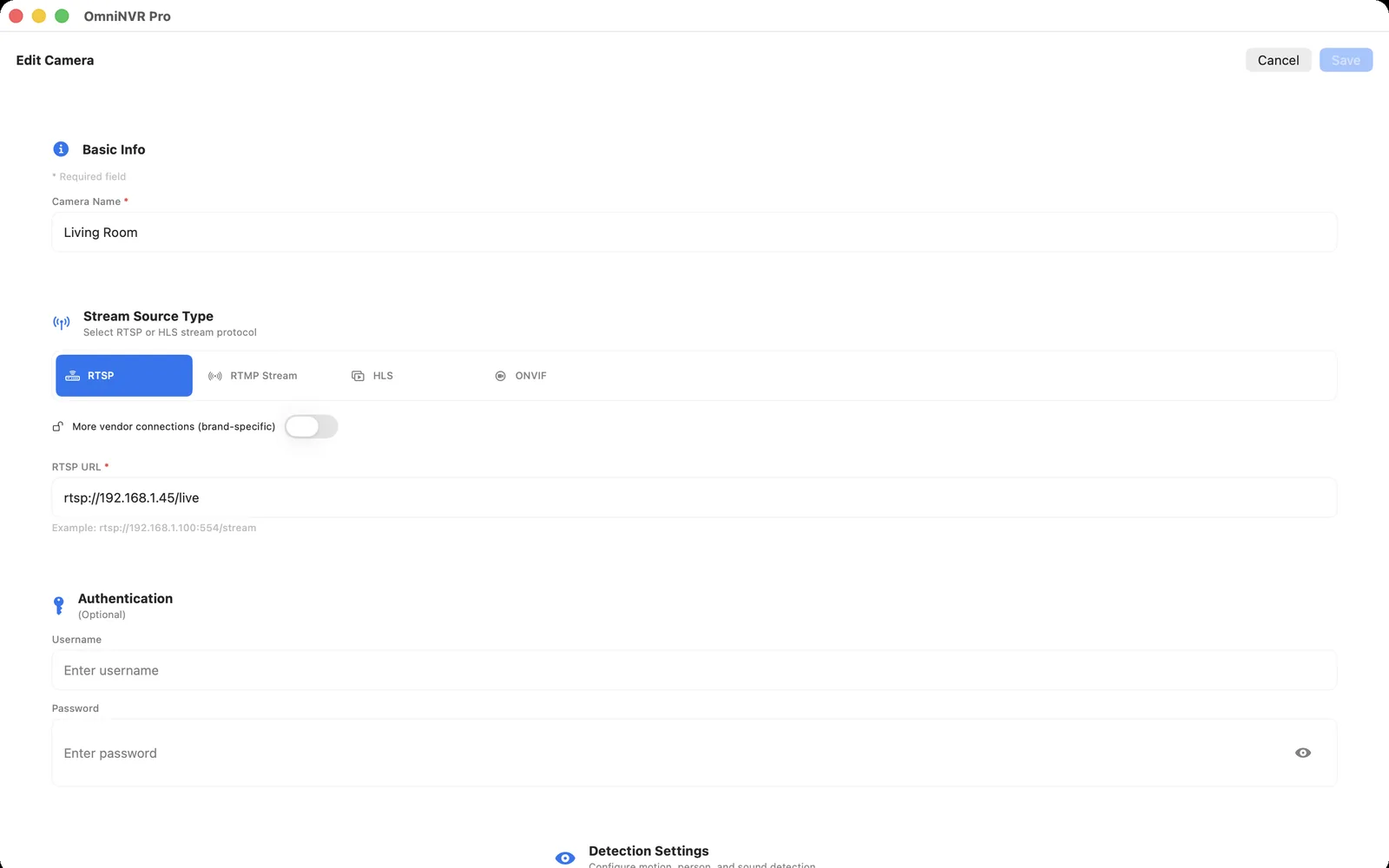
Create a test record for the exact device
Write down the manufacturer, full model, regional SKU, hardware revision, firmware, IP address method, and the NVR version under test. Compatibility can change when a vendor reuses a product name, removes a local protocol from one region, or changes authentication in firmware.
Use a dedicated camera-local account with only the required permissions. Keep passwords out of screenshots and shared test notes. If the camera advertises ONVIF conformance, compare its exact firmware with the official ONVIF product record.
Verify protocols, profiles, and codecs separately
| Layer | Pass condition | Evidence to save |
|---|---|---|
| Network | Stable address and reachable service ports | Address method, VLAN path, and firewall rule |
| ONVIF | Expected device, media profiles, and services are returned | Profile names and chosen stream URI |
| RTSP | The exact main and sub URLs negotiate repeatedly | Path, port, and transport without credentials |
| Media | Supported codec, profile, resolution, frame rate, keyframes, and audio | Stream inspection output |
| Optional controls | Required PTZ, presets, audio, or events work | Feature-by-feature result |
Do not collapse these rows into one “compatible” checkbox. A camera can stream video through RTSP while ONVIF discovery, PTZ, event delivery, or audio remains unavailable.
Run a 60-minute recording acceptance test
- Open the selected continuous-recording stream and confirm stable video for ten minutes.
- Record for at least one full hour, including a lighting or motion change if practical.
- Seek near the start, middle, and latest timeline positions.
- Play through a segment boundary and export a short interval.
- Compare recorded timestamps with the camera and NVR clocks.
- Confirm that the observed storage rate is plausible for the measured bitrate.
If event clips use a different main stream, trigger and review that path separately. A stable sub stream does not prove the main stream will decode, timestamp, or reconnect correctly.
Interrupt the system on purpose
Restart the camera, disconnect its network briefly, restart the NVR application, and—if external storage is used—test the documented remount workflow. After each interruption, record the recovery time, whether the timeline contains a gap, and whether operator action was required.
Do not perform all failures at once. One controlled change produces useful evidence; a simultaneous router, camera, host, and disk restart does not identify which recovery path failed.
Turn the result into a compatibility matrix
Give each required feature one of four states: pass, pass with configuration, not supported, or not tested. Include the date, firmware, NVR version, stream role, and test duration. “Not tested” is deliberately different from “supported.”
Repeat the shortened acceptance test after camera firmware or NVR updates. For a larger purchase, validate a sample from the intended production batch before ordering every unit.
Frequently asked questions
If live video works, is the camera compatible with my NVR?
Only for that live path. Recording, timestamps, retention, reconnect, playback, audio, PTZ, and events add independent requirements that must be tested.
Does an ONVIF logo guarantee compatibility?
No. Verify the exact model and firmware in ONVIF's database, identify the supported profile and conditional features, and then test the NVR workflow you need.
How long should a camera compatibility test run?
Use at least an hour for initial recording and playback, then a longer representative soak test before production. Include planned restarts and network interruption.
Sources and further reading
Record locally on the Apple device that fits the job.
Mac, iPhone, iPad, and Apple TV all support local recording. Recording modes and storage options can differ by platform and app version.