
Storage
NVR Storage Calculator and Retention Planning Guide
Calculate NVR storage from camera count, bitrate, schedule, retention, and headroom, then build cleanup rules that keep IP-camera recording healthy.
Calculate the recording capacity
Enter the bitrate of the stream that will actually be recorded—not the camera's maximum advertised bitrate. The result uses decimal storage units, where 1 TB is 1,000 GB, and keeps raw footage separate from the recommended capacity with headroom.
4 cameras at 2 Mb/s for 24 hours/day and 30 days, plus 20% headroom.
The estimate is planning evidence, not a guarantee. Variable-bitrate video changes with motion, detail, lighting, codec settings, and camera behavior. Compare the estimate with at least one representative day of real recordings before purchasing storage.
Start with bitrate, not megapixels
Two 4K cameras can have very different storage needs because codec, frame rate, scene complexity, keyframe interval, and quality settings change the bitrate. Use the measured or configured average bitrate for each recording stream.
A practical estimate is: daily gigabytes ≈ megabits per second × 10.8. A 2 Mb/s stream is therefore about 21.6 GB per day before overhead. Variable-bitrate scenes can move above or below that estimate, so measure real recordings over a representative day.
Add cameras and retention
Multiply each camera’s daily use by the number of retained days, then add cameras together. Keep headroom for event clips, database files, temporary exports, filesystem behavior, and bitrate spikes. Avoid setting a storage budget equal to the drive’s advertised capacity.
For a hybrid system, calculate continuous sub-stream storage separately from event main-stream storage. Event storage depends on event duration and frequency, so review observed totals after the first week.
Use two retention limits
A duration limit answers “how far back should I be able to review?” A capacity limit answers “how much of this disk may the recorder consume?” Using both prevents a high-bitrate camera from filling the disk before the planned day count and prevents unlimited growth when the disk is larger than expected.
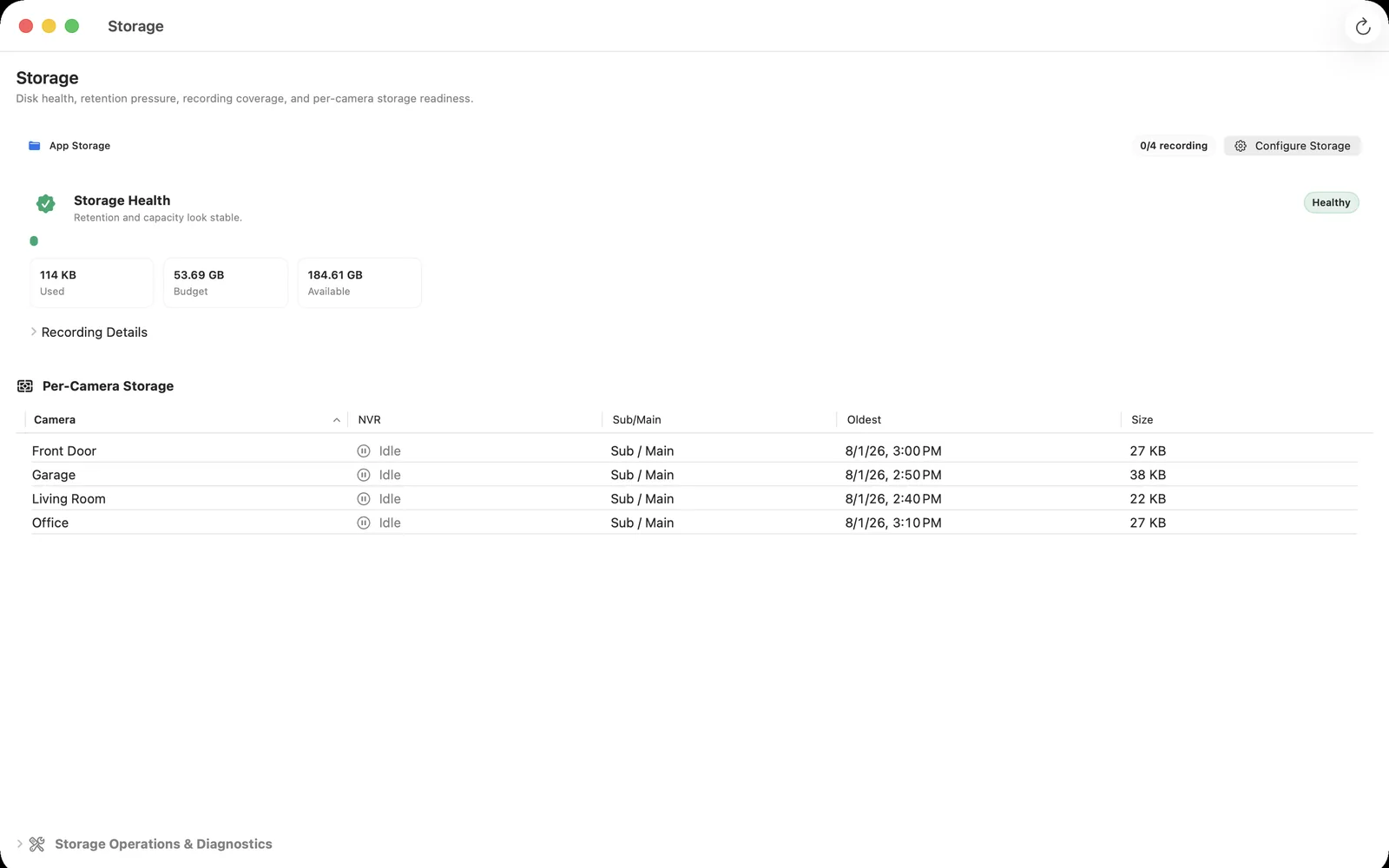
Retention should remove the oldest eligible segments in bounded batches, maintain database consistency, and keep recording while cleanup runs. After changing a storage root, verify both new writes and old-recording visibility.
Monitor the signals that matter
- Newest successful segment time for each camera
- Free and recorder-budget space
- Observed write rate versus expected bitrate
- Oldest retained segment
- Playback and export success
A drive can report free space while a recorder is stalled, and a recorder can be writing while its index is unhealthy. Check both storage and timeline behavior.
Frequently asked questions
How much storage does a 2 Mb/s camera need?
Approximately 21.6 GB per day before overhead, using the rough conversion Mb/s × 10.8. Measure the real stream because variable bitrate changes with scene activity.
Should an NVR use SSD or HDD storage?
SSDs offer low latency and no mechanical noise; HDDs can offer more capacity per cost. Reliability depends on the specific device, enclosure, connection, workload, and backup plan.
What happens when the retention limit is reached?
A correctly configured recorder removes the oldest eligible segments to stay within the duration or capacity policy while continuing new recording.
Sources and further reading
Record locally on the Apple device that fits the job.
Mac, iPhone, iPad, and Apple TV all support local recording. Recording modes and storage options can differ by platform and app version.