Camera setup
EZVIZ CCTV and NVR Setup on Mac: RTSP, ONVIF and Recording
Check EZVIZ CCTV model and firmware compatibility, use the correct local credential, and test RTSP or ONVIF recording on Mac.
Compatibility is model- and firmware-specific. OmniNVR and TardisLabs are not affiliated with or endorsed by EZVIZ.
Check compatibility before you start
Update the EZVIZ app and camera firmware, then find the device IP and verification code. On products with local-connectivity settings, the encryption password also acts as the login password for RTSP, ONVIF, SADP, and related services. Changing that password can therefore break an existing NVR connection.
Do not generalize between indoor cameras, battery models, and smart doorphones. EZVIZ's own support pages state that some doorphone lines have no RTSP/ONVIF interface.
Add the camera or NVR channel
For supported current models, EZVIZ documents a pattern such as rtsp://CAMERA-IP:554/ch1/main, with username admin and the device verification code or configured local password. Use OmniNVR's separate credential fields so the secret is not visible in the URL.
If the exact camera exposes ONVIF, try discovery first. Select the lower-quality profile for continuous recording when available, then keep the higher-quality profile for events.
Choose recording roles
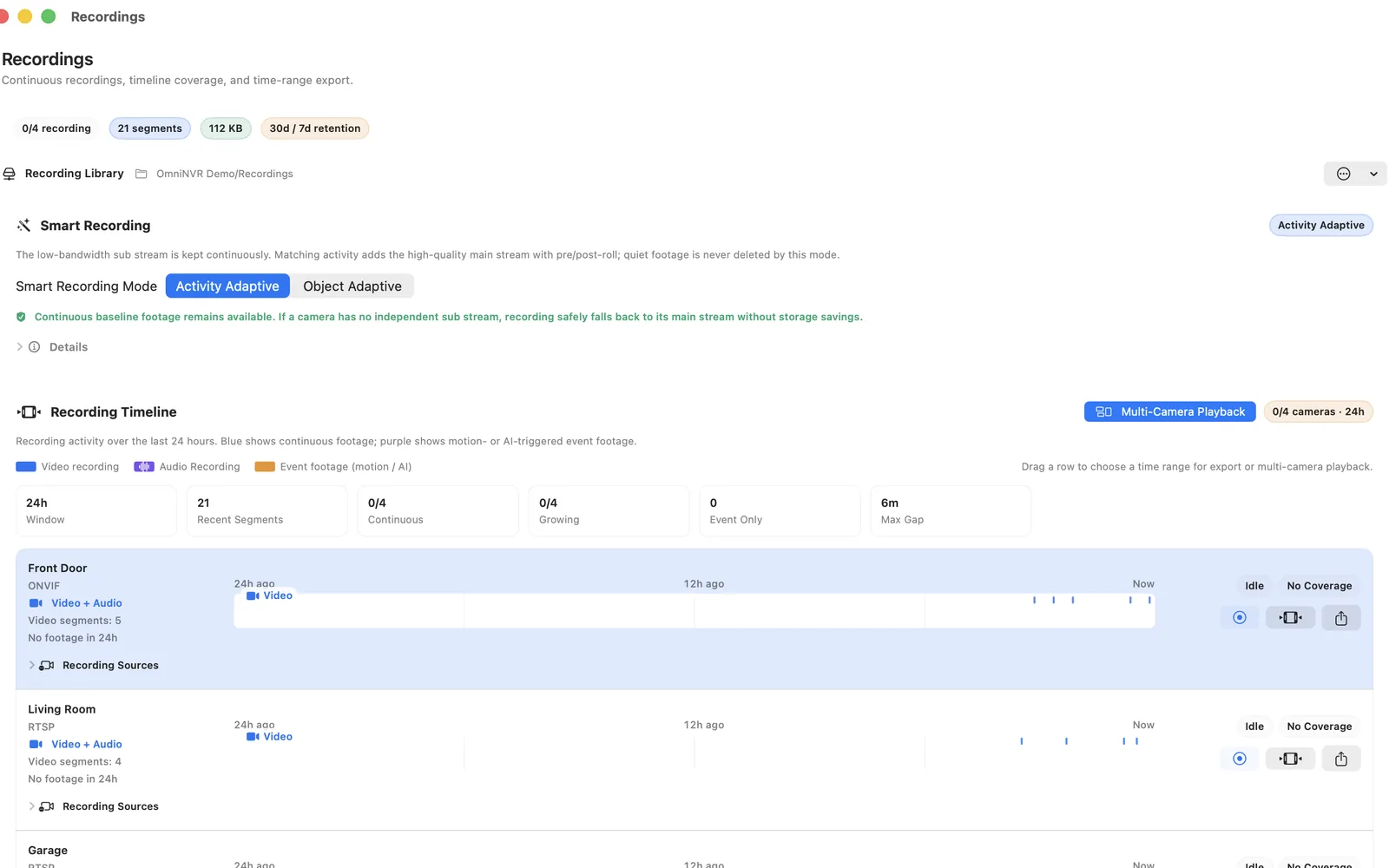
Use the lower-bitrate sub stream for continuous history when it has enough detail, and reserve the main stream for focused live view or event clips. This reduces storage and decode load without giving up high-quality evidence around important moments.
Before scaling up, record one camera for at least fifteen minutes, play it from the timeline, disconnect the network briefly, and restart OmniNVR. A working live preview alone does not prove that timestamps, recovery, and storage are reliable.
Troubleshooting checklist
- Verification code rejected: confirm capitalization and whether a newer local-connectivity password replaced it.
- Doorphone cannot be found: check the product FAQ; the model may not implement either protocol.
- Stream path differs: use the model's support page rather than an older EZVIZ URL copied from another generation.
- Camera goes offline: check Wi-Fi signal and reserve its IP address.
Frequently asked questions
Does every EZVIZ camera work with OmniNVR?
No. The camera or recorder must expose a compatible RTSP, RTSPS, ONVIF, or HLS stream, and support varies by model, firmware, codec, power mode, and network topology.
Should I connect to the camera or the brand NVR?
Connect directly when the camera is reachable and you want independent streams. Connect to the NVR when cameras are isolated behind its PoE network or the recorder is the only endpoint that exposes each channel.
Can I expose the RTSP port to the internet?
Do not forward camera RTSP ports for long-term remote access. Keep cameras local and use a trusted VPN when remote viewing is required.
Sources and further reading
Record locally on the Apple device that fits the job.
Mac, iPhone, iPad, and Apple TV all support local recording. Recording modes and storage options can differ by platform and app version.