Dahua camera commissioning
Dahua ConfigTool: Discover, Initialize, and Address Cameras for an NVR
Find Dahua cameras with ConfigTool, distinguish initialization from password recovery, plan IP changes, and test the stream in your local NVR.
Confirm the utility and exact device scope
Start at Dahua's official support tools catalog, then check the package documentation for your operating system and device. Search spelling varies between ConfigTool, Config Tool, and Dahua configuration tool; those phrases should lead back to the manufacturer's release information. They do not justify using a repackaged installer or a tool intended for a different product family.
Record the exact camera model, regional variant, firmware, and whether it belongs to a vendor-branded or OEM installation. Similar hardware does not guarantee the same commissioning software or recovery service. Use the device supplier's instructions when its support path differs. Leave firmware changes outside the initial discovery test unless the model documentation requires them.
Understand the LAN and the address you are seeing
Connect one known, powered camera and the commissioning computer to the appropriate local network. Dahua's initialization guide describes ConfigTool initialization over the same LAN. Its examples also warn that product interfaces vary. Check the selected network adapter and configured search range instead of assuming a missing result proves hardware failure.
The familiar address 192.168.1.108 appears in Dahua setup examples, but an installed camera may already have a DHCP lease or another static address. Match identity using the model, label, and discovered information. If a recorder's PoE network isolates its cameras, a computer on the router LAN may not have the necessary path to them.
Initialize a new camera without confusing it with recovery
An uninitialized device needs its first owner-controlled credentials. Select only the intended camera and follow the supported initialization dialog. Create the required password and configure recovery information that the owner can retain. Confirm the result for that individual device before adding more cameras; a batch operation should not hide one failed unit.
An initialized camera with an unknown password is a different case. Follow the recovery method documented for that model and firmware, or contact its authorized support provider. Dahua's published guide describes recovery tied to configured verification information. ConfigTool discovery does not reveal an existing password or guarantee that any device can be reset. Avoid a factory reset merely to resolve an uncertain address.
Plan an address change before applying it
| Observation | Practical response | Verify afterward |
|---|---|---|
| Valid DHCP address | Consider a router reservation | Address remains predictable after restart |
| Static address on the wrong network | Apply the approved address, mask, and gateway | Management and recorder can reach it |
| Possible duplicate address | Identify each physical device before changing one | Only the intended camera moves |
Enter the current authorized credentials when the change requires them. Preserve the old values and avoid assigning the camera the computer's address or another occupied address. Refresh the device list after applying the change, then open management at the new address. Update the recorder only after the identity and connection are confirmed.
Check the recording interface independently
ConfigTool's successful initialization or address update does not prove that the camera exposes the stream your NVR needs. Inspect the exact model's documented RTSP and ONVIF settings, supported accounts, codec options, and main/sub-stream choices. A cloud preview or a vendor-protocol connection can work while the intended third-party interface remains unavailable or incorrectly configured.
Use the Dahua camera NVR guide to continue from commissioning to media. Choose the camera or recorder channel deliberately, use the configured service port rather than a guessed default, and enter credentials in protected fields where available. Test audio, PTZ, and events individually if they are requirements; shared branding does not establish identical capability across models.
Validate the handoff and retain useful evidence
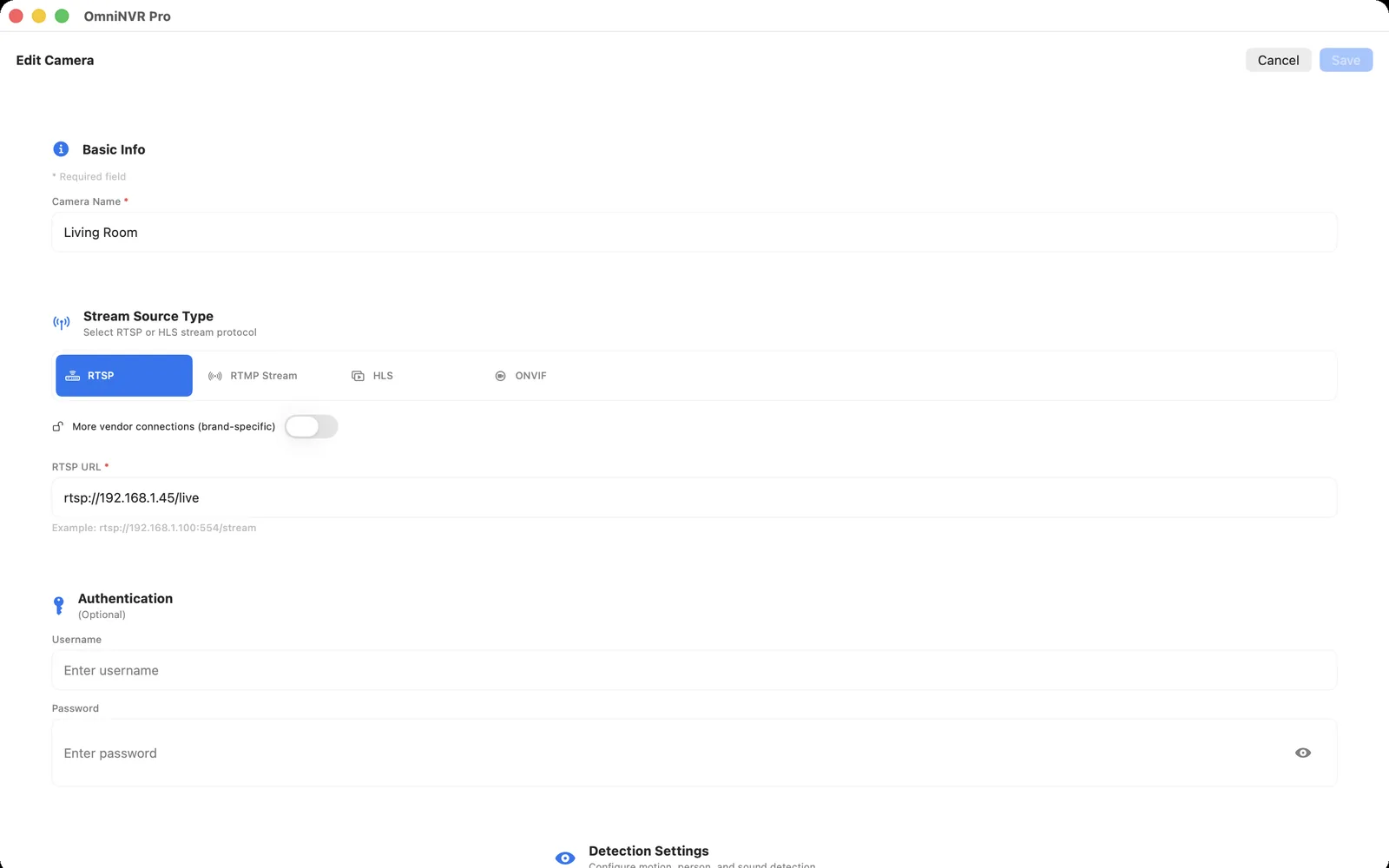
Add the selected stream to the intended OmniNVR platform, respecting that release's supported features. Check live video, create a recording, locate its time, and play the stored footage. Then perform a planned camera or network restart and confirm that fresh recording resumes. A green configuration result cannot substitute for this recorder test.
Keep the final address, model, firmware, stream choice, and recovery ownership in the installation inventory. Remove temporary test sessions if they consume camera connections. Protect exported device lists, credentials, and recovery material; do not paste them into public troubleshooting threads. Keep camera-management services private and use an authenticated remote-access arrangement when off-site administration is necessary.
Frequently asked questions
Does every Dahua camera use 192.168.1.108?
No. That address appears in Dahua setup examples, but an installed camera can have a different static address or a DHCP lease. Confirm the actual device identity and address instead of treating an example as a universal value.
Does ConfigTool initialization enable all ONVIF and RTSP functions?
Do not assume so. Initialization establishes device setup and credentials. Verify the exact model's streaming and ONVIF configuration, account permissions, and media profiles separately.
Can ConfigTool recover any forgotten password?
No. Password recovery depends on the supported model, firmware, and verification method. Use the manufacturer's documented recovery procedure or authorized support, rather than assuming discovery permits a reset.
Can I record continuously inside ConfigTool?
This workflow uses ConfigTool for commissioning. Evaluate an NVR separately for sustained recording, storage retention, playback, export, and restart recovery rather than relying on configuration or preview success.
Sources and further reading
Choose Windows or an Apple device for local recording.
OmniNVR is available on Windows, Mac, iPhone, iPad, and Apple TV. Recording modes, purchase requirements, storage, and review tools vary by released platform build.