Hikvision camera commissioning
Hikvision SADP Tool: Find, Activate, and Prepare Cameras for an NVR
Use Hikvision's official discovery workflow to identify cameras, handle activation and addresses, understand HiTools Delivery, and verify an NVR handoff.
Start with Hikvision's current tool guidance
People still search for SADP because existing installation instructions and service notes use that name. The official SADP page, checked for this guide on October 20, 2026, recommends migrating to HiTools Delivery and carries a notice that SADP will no longer receive updates starting in April 2026. Follow the current official catalog rather than selecting a package because a third-party page ranks highly.
Check the package's supported operating system and device scope before installation. This guide does not assign a Windows minimum or promise an equivalent Mac release. The useful outcome is a supported commissioning route for your exact camera, firmware, and computer.
Identify one device before changing anything
Begin with the camera's label, expected location, power source, and cable route. Compare the discovered model and serial number with that inventory. On a busy installation, an unfamiliar address alone is a poor way to select a target. A recorder, camera, or another supported Hikvision device can appear in a management list.
Record the current address, subnet mask, gateway, activation status, and firmware information that the tool provides. Check the router's lease table as a second reference when DHCP is used. Preserve enough information to recover the previous network arrangement if an address change disconnects the device. Avoid a batch operation until a single known camera completes the procedure.
Use a deliberate camera-network connection
Hikvision's camera activation instructions call for the camera and computer running SADP to be within the same subnet. Start there. Check whether the camera is on the normal LAN, a separate camera VLAN, or the private side of a recorder's built-in PoE ports. Those networks are not interchangeable merely because they share one building.
If the device does not appear, verify power, link, adapter selection, and the network topology. Guest Wi-Fi isolation and host security settings may affect local communication. Use a controlled wired test where practical. Do not solve an empty discovery list by forwarding camera-management ports to the internet.
Separate activation, address changes, and recovery
| Device state | Next step | Required boundary |
|---|---|---|
| New and inactive | Follow the supported activation process | Create and retain the owner-controlled credentials |
| Active, known credentials | Review network settings and change only what is needed | Confirm the selected physical device |
| Active, forgotten credentials | Use the official recovery route for that device | Meet its verification prerequisites |
Activation establishes the initial account. It is different from recovering an existing installation. Hikvision documents several recovery methods with different prerequisites, including previously configured recovery information or manufacturer-assisted verification. A SADP entry is not permission to reset an arbitrary device. After an address change, reconnect at the new address and confirm its identity before proceeding.
Enable the actual camera interface needed by the NVR
SADP discovery does not establish ONVIF availability. Log into the selected camera using its documented management route and inspect the exact model's integration settings. Hikvision's ONVIF setup example includes enabling the protocol and adding an ONVIF user. Menu names and account behavior can differ across firmware; use the corresponding manual rather than assuming every screen matches that example.
Grant the recorder the permissions its required operations need. Keep the administration credential protected, leave unused services disabled, and record the selected main or sub stream. PTZ, analytics, two-way audio, and proprietary events require their own compatibility checks; basic camera detection does not promise them.
Finish with footage, then preserve the commissioning notes
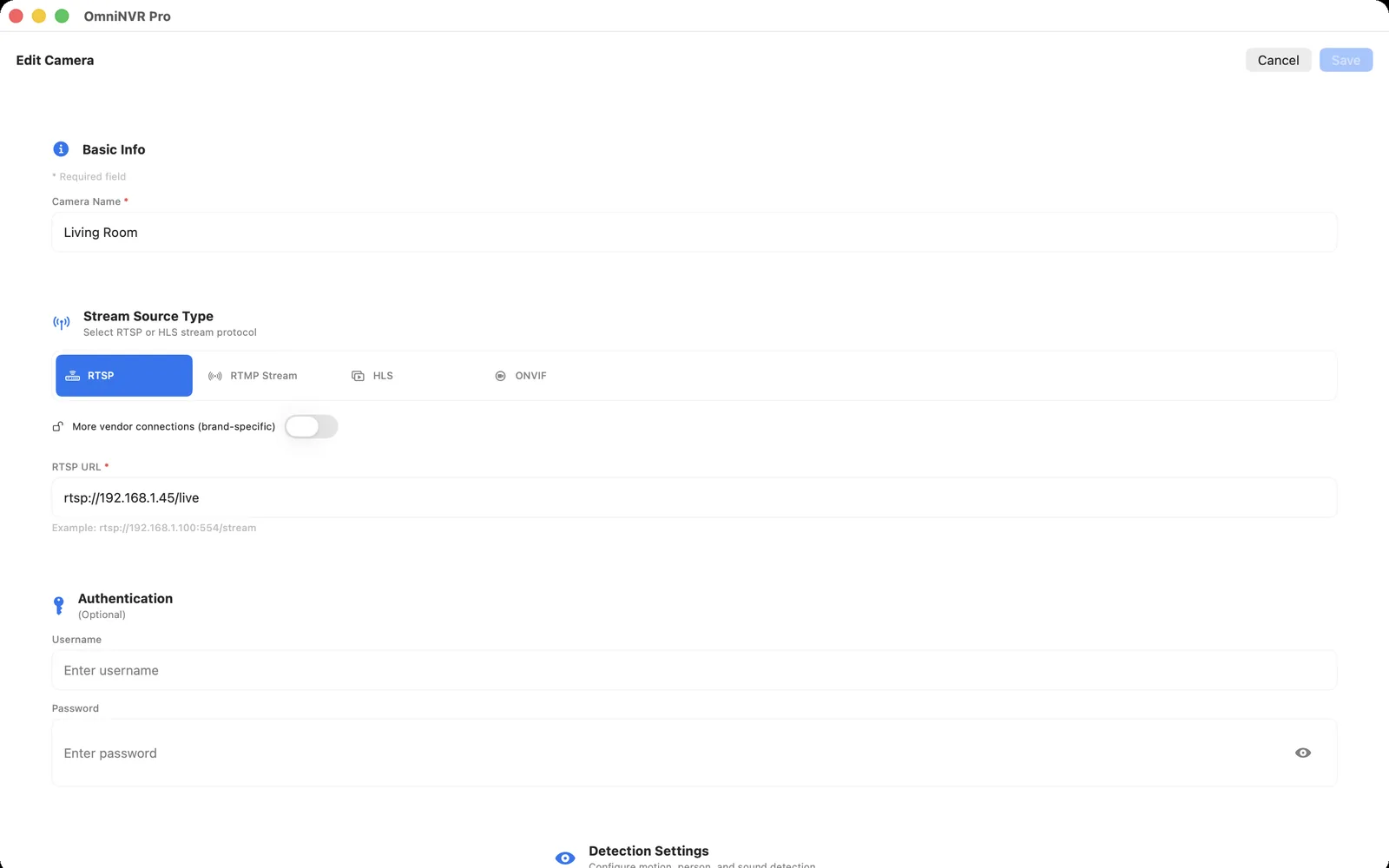
Continue with the Hikvision RTSP and NVR setup guide. Add the intended camera or recorder channel to the released OmniNVR build, select a compatible stream, and verify live video followed by a saved recording. The configuration utility prepares the device; the recorder owns footage, storage, timeline review, and recovery behavior.
Test a planned interruption and confirm new footage after reconnection. Update the inventory with the final address, model, firmware, service account, stream selection, and test time. Keep passwords and recovery exports in protected storage, rather than screenshots or public support posts. That handoff makes a later router replacement or firmware update easier to diagnose.
Frequently asked questions
Should a new Hikvision installation start with SADP or HiTools Delivery?
Check Hikvision's current official tools catalog. Its SADP page recommends HiTools Delivery as the successor. Confirm package and device compatibility for the exact installation before choosing a tool.
Why can SADP see the camera while OmniNVR cannot add it?
Vendor discovery, camera activation, ONVIF authentication, and media streaming are separate checks. Verify the camera's enabled protocol, the appropriate account, reachable address, and supported stream.
Is 192.168.1.64 the address of every Hikvision camera?
No. An address shown in an example is not a universal current address. The actual device may use DHCP, a changed static address, or a recorder-side camera network. Identify it from the installation and discovery results.
Can SADP reset any Hikvision password without verification?
No. Recovery depends on the device and supported verification method. Follow Hikvision's official procedure or authorized support path, and preserve the existing system configuration where possible.
Sources and further reading
Choose Windows or an Apple device for local recording.
OmniNVR is available on Windows, Mac, iPhone, iPad, and Apple TV. Recording modes, purchase requirements, storage, and review tools vary by released platform build.