
Local NVR workflow
Motion-Activated NVR Software: Detection Without Missing Context
Evaluate motion-activated NVR software by detection ownership, zones, pre-roll, post-roll, false alerts, fallback recording, review, and export.
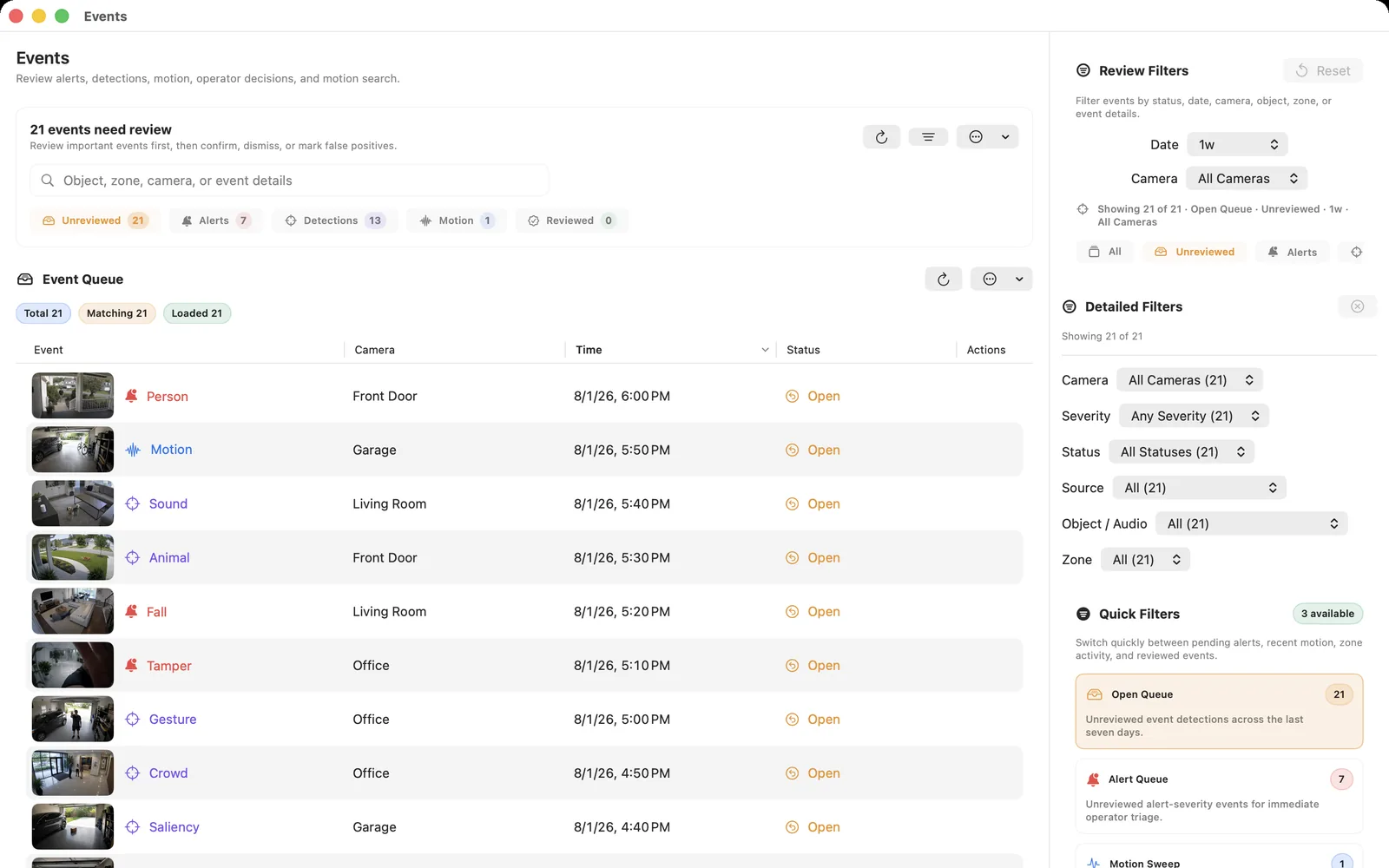
Define the required outcome
Events begin early enough to include approach context, end after the action, expose false positives for tuning, and remain linked to a playable timeline.
Write the owner, cameras, stream roles, recording schedule, retention, storage location, users, review deadline, export method, and acceptable outage. A workflow cannot be tested while those responsibilities are implicit.
Describe a normal event and a failure event in plain language. The normal event proves the recorder creates useful history; the failure event proves the operator can recognize a gap, preserve what remains, and restore the path without changing unrelated settings.
Plan the complete media path
Trace camera power, LAN transport, authentication, RTSP or other media input, optional ONVIF discovery, recorder processing, storage writes, indexing, playback, and export. Each layer can fail independently.
Motion is not a guarantee that an important event will be classified. Lighting, weather, trees, insects, shadows, camera movement, and occlusion can create misses or noise.
Keep an installation record with camera model, firmware, address reservation, protocol setting, stream profile, codec, bitrate, time source, recorder account, storage destination, and retention. That record is more useful than guessing after a router, drive, or camera replacement.
Protect recording reliability
Use dedicated camera accounts where supported, avoid exposing camera services directly to the public internet, keep time consistent, reserve storage headroom, and make recorder health visible. Add cameras in stages.
Keep detection, notification, and remote access from becoming hidden dependencies for the basic recording path. An alert can fail while useful video continues, and the system should make that distinction clear.
Review health on a schedule instead of waiting for an incident. Check newest playable footage, free-space trend, disconnected cameras, clock drift, failed exports, pending updates, and who still has access. Assign the check to a named person.
Where OmniNVR fits
OmniNVR can combine local recording and device-side event review on supported platforms, subject to the released app and device. Keep recording responsibility separate from detection confidence.
Current Apple-platform roles and availability are recorded on the platform facts page. Camera and workflow support still depends on the exact device, stream, codec, firmware, network, storage, app version, and purchase state.
Acceptance test
Walk each approach at different speeds and lighting, test pre/post context, review missed and false events, and verify recording continues when detection is disabled.
Repeat the test after a camera update, app update, storage change, router replacement, or operating-system upgrade. Preserve the observed settings and a known-good exported clip so later troubleshooting starts from evidence.
Include a negative test: wrong credentials, unavailable storage, blocked network path, or unsupported profile. The app should expose a clear failure instead of presenting a frozen image or stale status as if recording were healthy. Record the recovery time, the exact action that restored service, and whether any footage or event context was lost.
Frequently asked questions
What does good recording or marking video around motion and detected events look like?
Events begin early enough to include approach context, end after the action, expose false positives for tuning, and remain linked to a playable timeline.
Is live view enough to prove the NVR works?
No. Verify recorded segments, timeline indexing, retention, playback, export, network recovery, host restart, and low-storage behavior.
Can OmniNVR use any IP camera?
No. The exact camera must expose a compatible stream and work with the selected Apple platform, codec, firmware, network, storage, and app version.
What acceptance test should I run?
Walk each approach at different speeds and lighting, test pre/post context, review missed and false events, and verify recording continues when detection is disabled.
Sources and further reading
Record locally on the Apple device that fits the job.
Mac, iPhone, iPad, and Apple TV all support local recording. Recording modes and storage options can differ by platform and app version.