Camera setup
Lorex 4K Fusion NVR and Camera System: Compatibility Setup
Check a Lorex 4K Fusion NVR or camera system by exact model, verify documented RTSP or ONVIF access, and test channel recording safely.
Compatibility is model- and firmware-specific. OmniNVR and TardisLabs are not affiliated with or endorsed by Lorex.
Check compatibility before you start
Read the complete Lorex recorder model and series before setup. Official Lorex pages show materially different Fusion configurations: the N843A82 page lists eight PoE camera channels plus up to two compatible Wi-Fi products, while a current N910 system lists eight wired and eight wireless camera positions. Use those examples only to understand the family; search the official product help and manual for the exact SKU, then confirm whether RTSP or ONVIF is documented for the recorder channel or camera you want to use.
If a Fusion camera works in Lorex Classic or another Lorex app, that proves the vendor workflow only. It does not prove the same camera exposes a direct RTSP or ONVIF endpoint. When cameras are reachable only through the NVR, use the recorder's documented channel stream rather than guessing a camera URL.
Add the camera or NVR channel
For supported products, Lorex currently documents a recorder pattern based on rtsp://RECORDER-IP:554/cam/realmonitor?channel=1&subtype=0, with the channel selecting the recorder input and the subtype selecting main or sub stream. Use the exact path, port, and numbering in the current manual because Lorex says third-party RTSP applies only to certain models.
Keep credentials in protected fields, test the main and sub streams separately, and validate a new recording and playback after an NVR restart. Do not expose the recorder's RTSP port directly to the public internet; use a maintained private-access method for remote viewing.
Choose recording roles
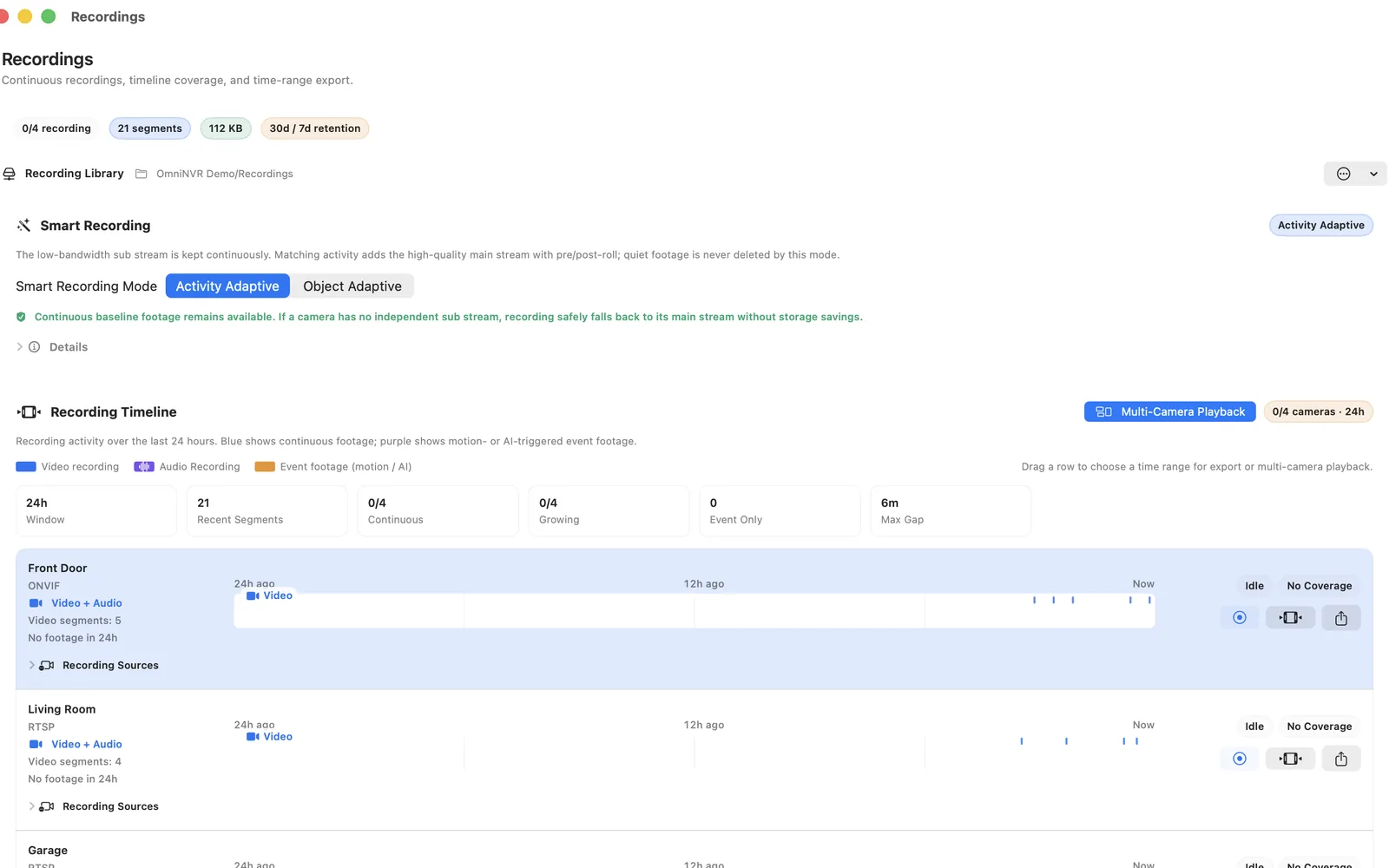
Use the lower-bitrate sub stream for continuous history when it has enough detail, and reserve the main stream for focused live view or event clips. This reduces storage and decode load without giving up high-quality evidence around important moments.
Before scaling up, record one camera for at least fifteen minutes, play it from the timeline, disconnect the network briefly, and restart OmniNVR. A working live preview alone does not prove that timestamps, recovery, and storage are reliable.
Troubleshooting checklist
- “Fusion” search returns the wrong generation: match the full NVR model, hardware revision, app ecosystem, and region.
- App video works but RTSP fails: confirm the exact recorder or camera is among models with third-party streaming support.
- Wrong camera appears: verify the channel number on the recorder's local live grid.
- Direct camera is unreachable: it may be attached to a private NVR camera network; try the supported recorder channel path.
Frequently asked questions
Does every Lorex 4K Fusion NVR support RTSP?
Do not assume so. Lorex says third-party RTSP is available on certain DVRs, NVRs, and IP cameras. Check the exact Fusion recorder model, firmware, region, and current manual before planning a connection.
Does every Lorex camera work with OmniNVR?
No. The camera or recorder must expose a compatible RTSP, RTSPS, ONVIF, or HLS stream, and support varies by model, firmware, codec, power mode, and network topology.
Should I connect to the camera or the brand NVR?
Connect directly when the camera is reachable and you want independent streams. Connect to the NVR when cameras are isolated behind its PoE network or the recorder is the only endpoint that exposes each channel.
Can I expose the RTSP port to the internet?
Do not forward camera RTSP ports for long-term remote access. Keep cameras local and use a trusted VPN when remote viewing is required.
Sources and further reading
Record locally on the Apple device that fits the job.
Mac, iPhone, iPad, and Apple TV all support local recording. Recording modes and storage options can differ by platform and app version.